Working Modes
U-Scope operates in one of two modes, toggled with the Start and Stop buttons in the Control Panel’s Trigger section.
Roll Mode
Click Start to begin data acquisition and enter Roll Mode — a continuous, real-time display of incoming data.
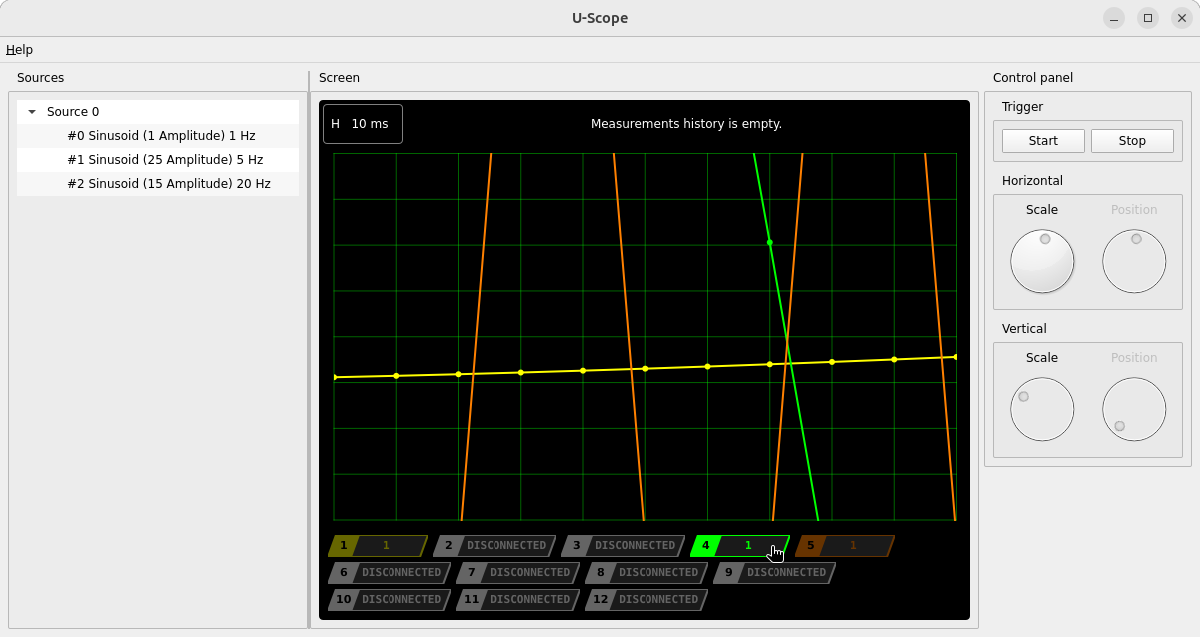
- The main chart continuously scrolls to show the most recent window of data, sized according to the current horizontal scale.
- The overview strip at the top of the screen is hidden, since there’s no fixed history to browse — data is streaming live.
- Vertical and horizontal scale adjustments apply immediately to the live view.
Stopped Mode
Click Stop to halt acquisition and enter Stopped Mode, designed for detailed analysis of the dataset captured while running.
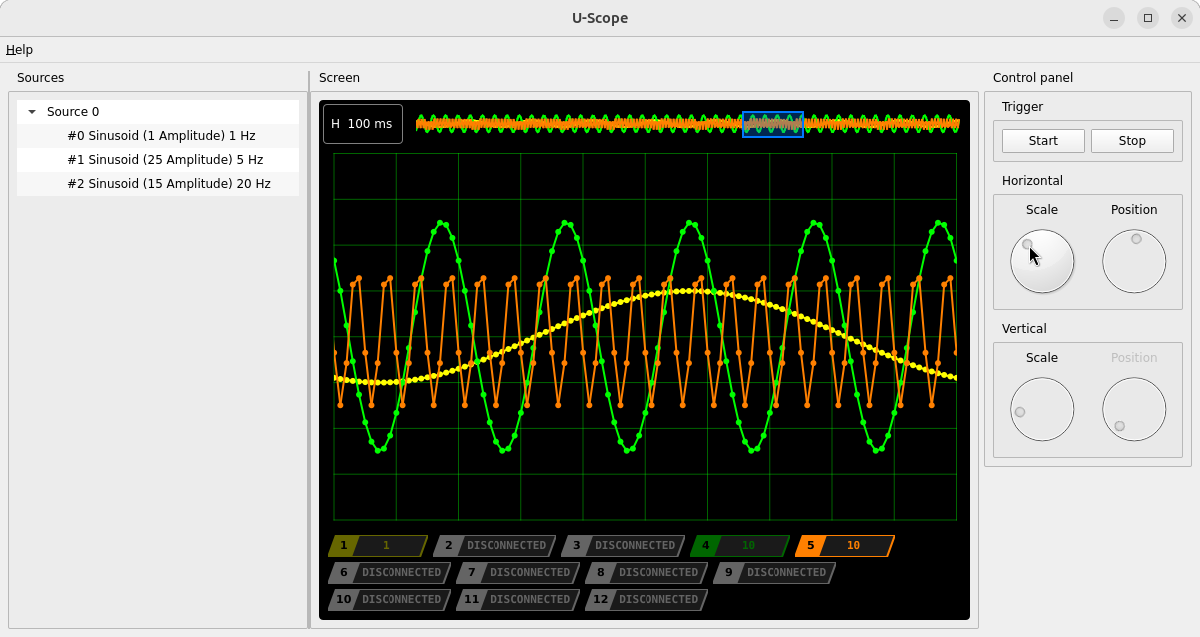
- The overview strip appears at the top of the screen, showing the full captured history for all connected channels.
- A sliding window overlay on the overview strip marks the time range currently shown on the main chart below.
- Drag the sliding window left or right to move through the captured history.
- The horizontal and vertical scale dials can be used to zoom into specific segments of the data within the current window.
If no data was captured, the overview strip displays “Measurements history is empty” instead of the chart.
Switching between modes
| Roll Mode | Stopped Mode | |
|---|---|---|
| Trigger | Start | Stop |
| Overview strip | Hidden | Visible, with sliding window |
| Main chart shows | Live scrolling data | Selected window from history |
| Horizontal Position dial | Not available | Available, moves sliding window |
Switching from Stopped back to Roll discards the current sliding window position; returning to Stopped later resumes with the most recent data in view.